
Using Lambda@Edge To Write Region-Specific Data To DynamoDB
Localization is super simple with Lambda@Edge

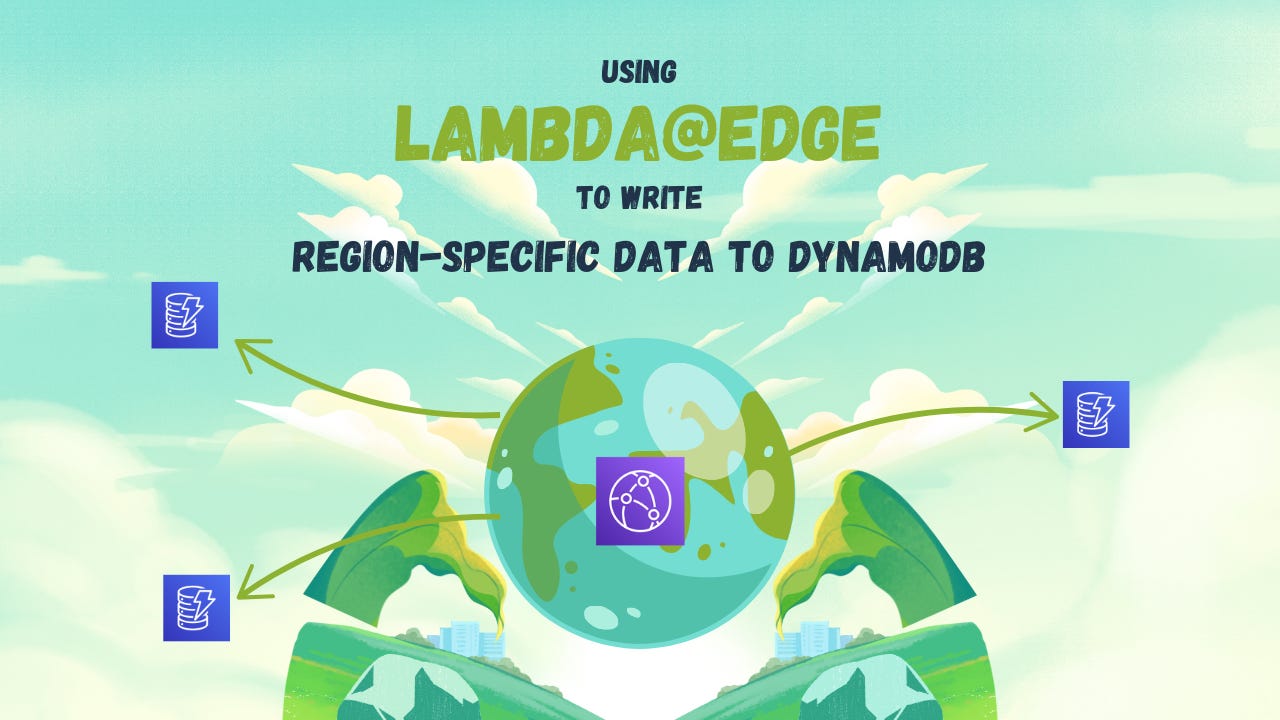
Lambda@Edge is a powerful tool that allows you to run serverless code closer to your users by using Amazon CloudFront edge locations.
Why is this useful for you?
Imagine you are running an online store. You regularly send out notifications to store members.
Instead of storing generic content like “Black Friday Sale! Up to 50% off!” for all customers, you can send dynamic content to users based on their location.
For example:
Users in North America might see “Black Friday Sale!”.
Users in India might see “Diwali Sale!”
Users in Europe might see “Pre-Winter Sale” or something similar.
This is only one example, but the use cases are endless, such as country-based item pricing, or storing product recipes variations based on country.
In this article, let’s understand how Lambda@Edge works by using a simple example of country-based pricing and writing this data dynamically to DynamoDB.
Setup DynamoDB
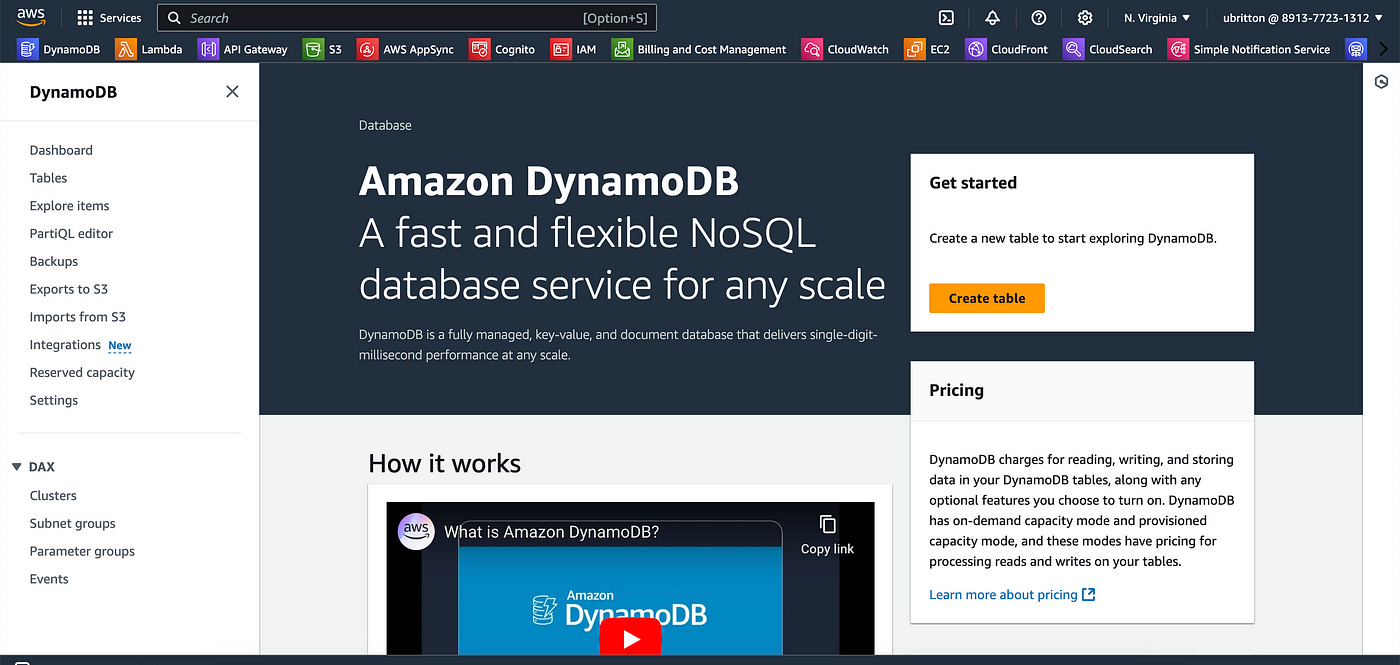
Let’s start by setting up our DynamoDB table that will hold the content necessary.
Click on Create table.
Let’s name our table “products” and use “productID” as the partition key, and leave the sort key empty.
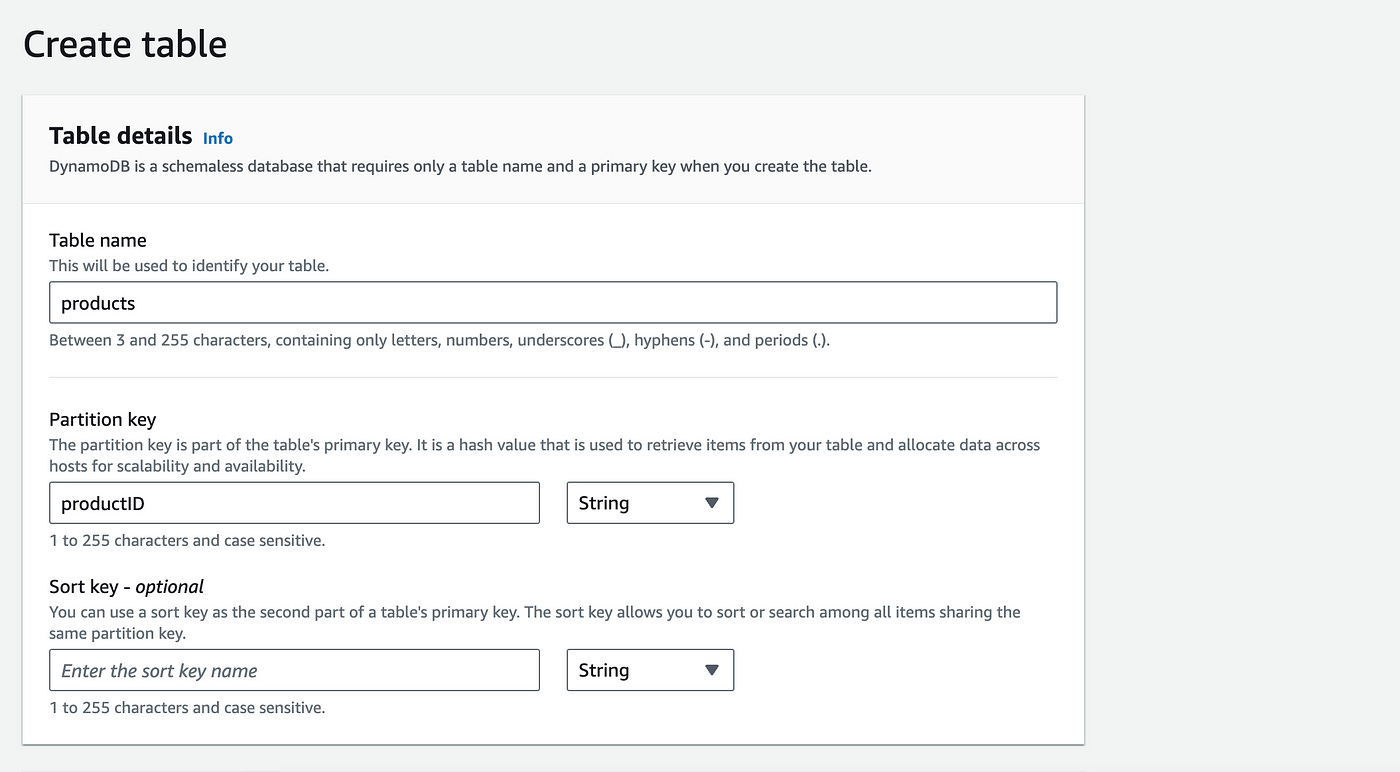
You can now create the table at the bottom.
That’s all we need for DynamoDB.
Setup CloudFront Distribution
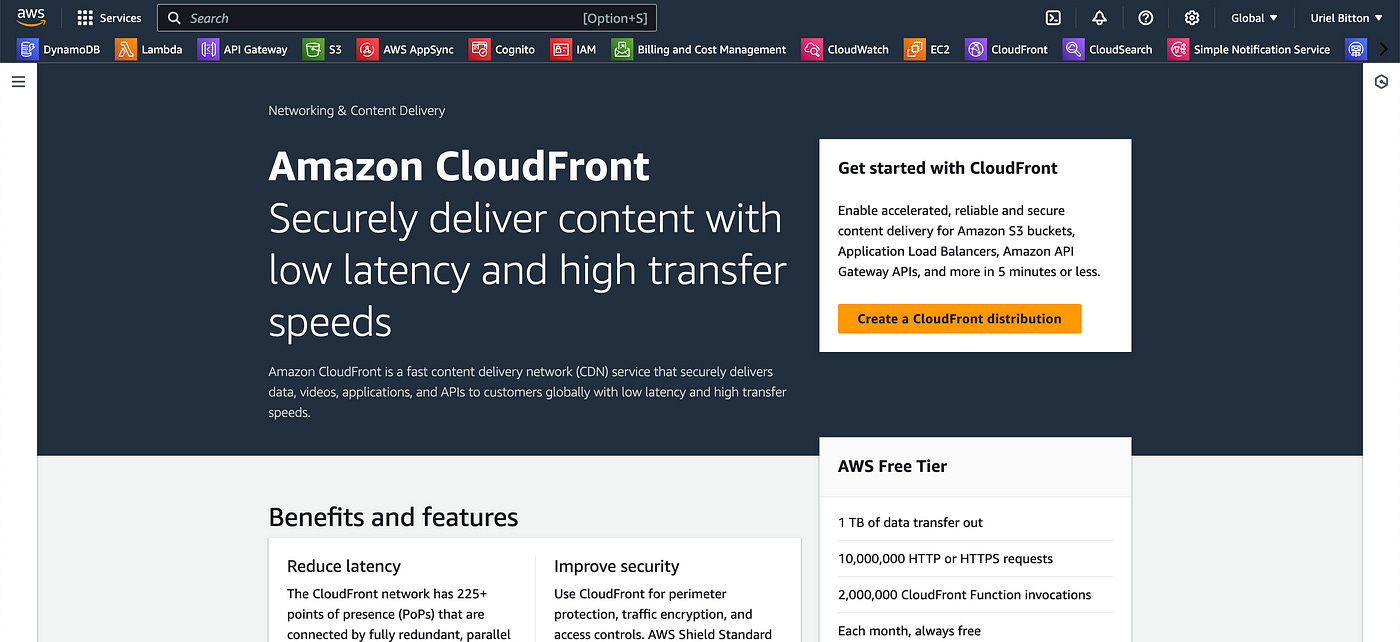
Head over to the CloudFront service in AWS.
We’ll set up a new distribution with the following configuration:
Make sure you have created an S3 bucket. (You can do this easily by going to the S3 service and creating a bucket).
Under Origin Domain, link the S3 bucket you created above.
Name the origin “localized-content-origin” or another name you want.
Under Origin access, select “Public”.
Under Default cache behavior, check the “GET, HEAD, OPTIONS, PUT, POST, PATCH, DELETE” option.
Lastly, under Web Application Firewall (WAF), choose the security protections if you are using this in production, otherwise do not enable it if you are just trying this out with me.
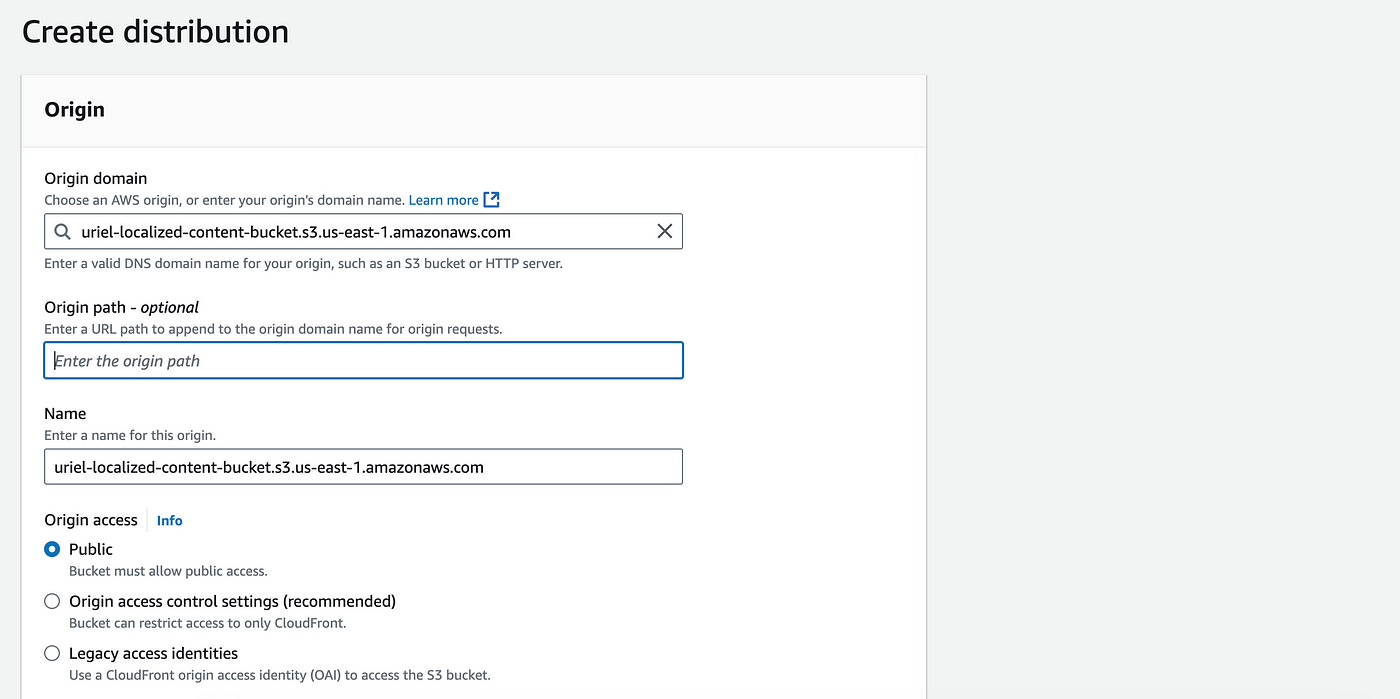
Click on Create distribution when you are done.
On the main page, you will see the distribution being deployed. While we wait, let’s setup the Lambda function in the next section.
Create an IAM Role
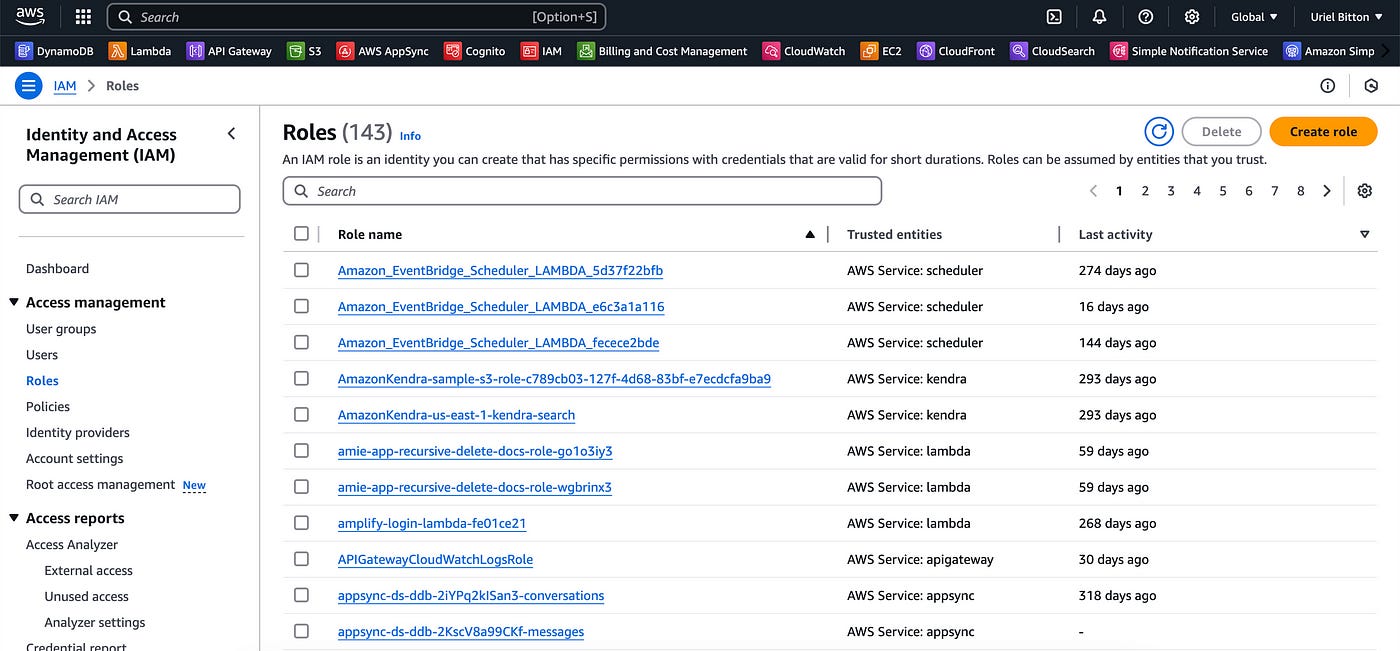
For our function to be deployed to Lambda@Edge, we need to add a special IAM role to it.
In the IAM service, click on Create new Role.
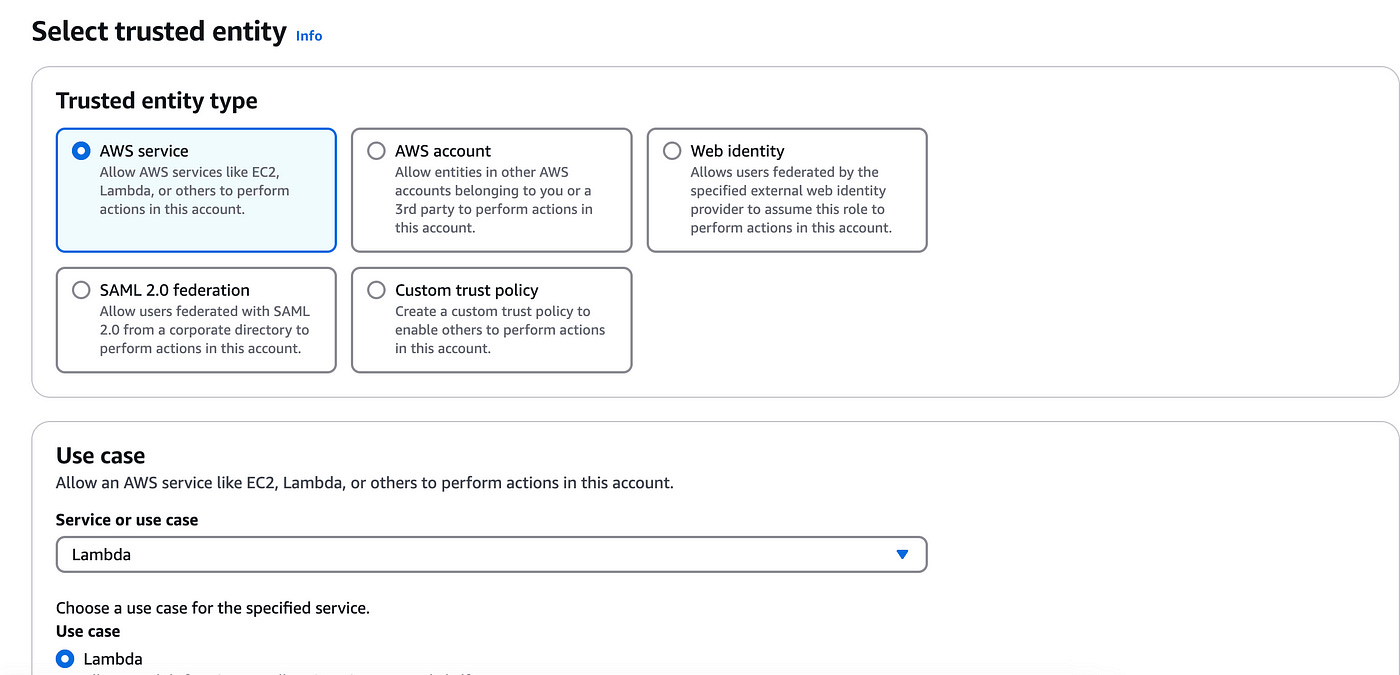
On the next page, select the Lambda service for the Use case, and then click next.
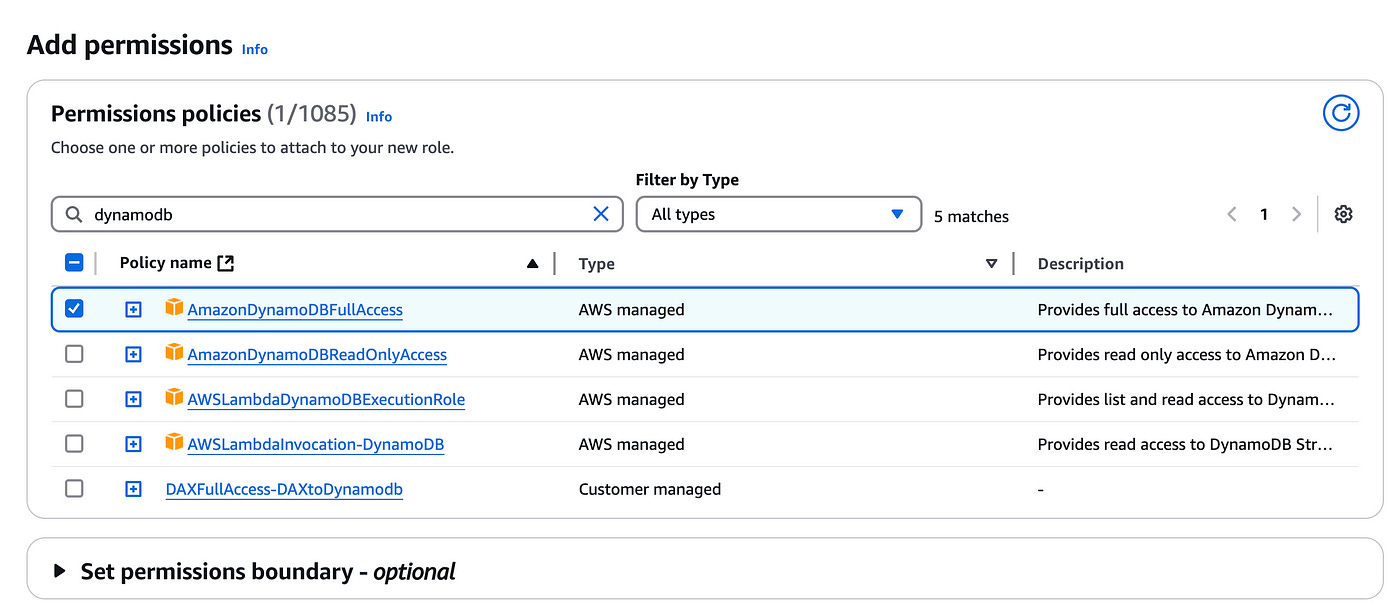
On the next page, search for and add the DynamoDBFullAccess policy and click on next.
On the next page, name the role “lambda-dynamodb-role” and then click on the Create role button.
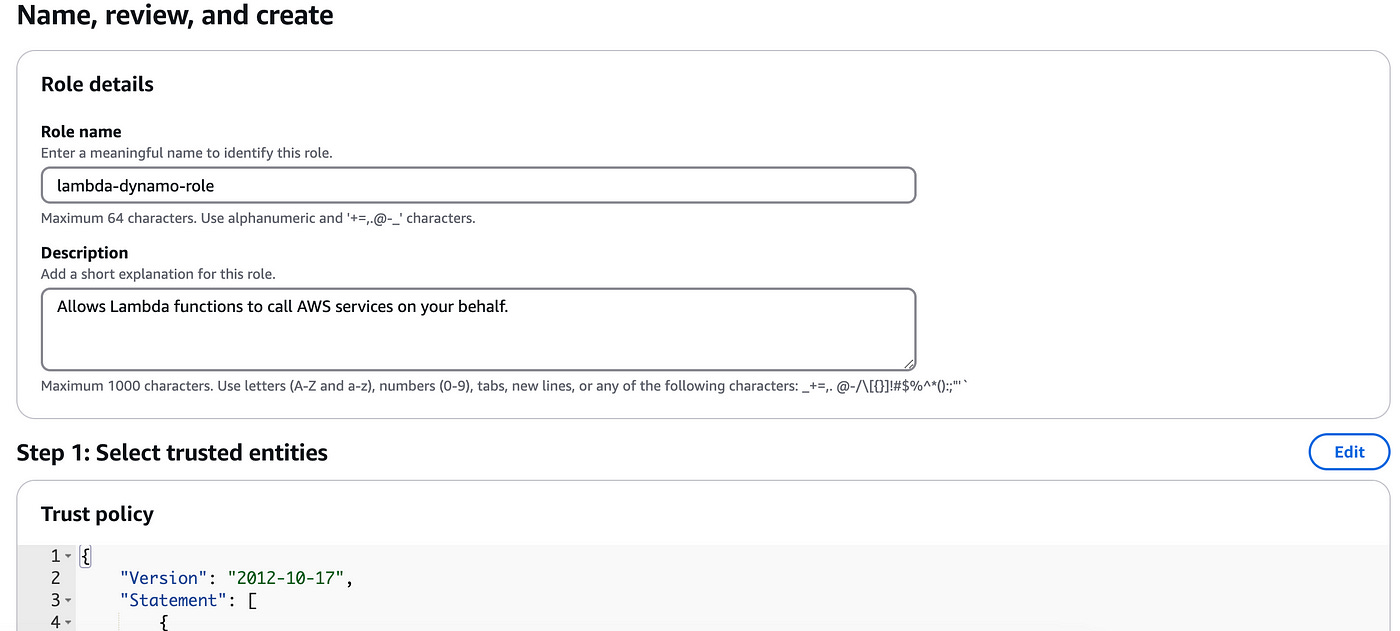
Now that the role is created, find it again in the list of roles.
Click on the Trust relationships tab on the role page and click on Edit trust policy.
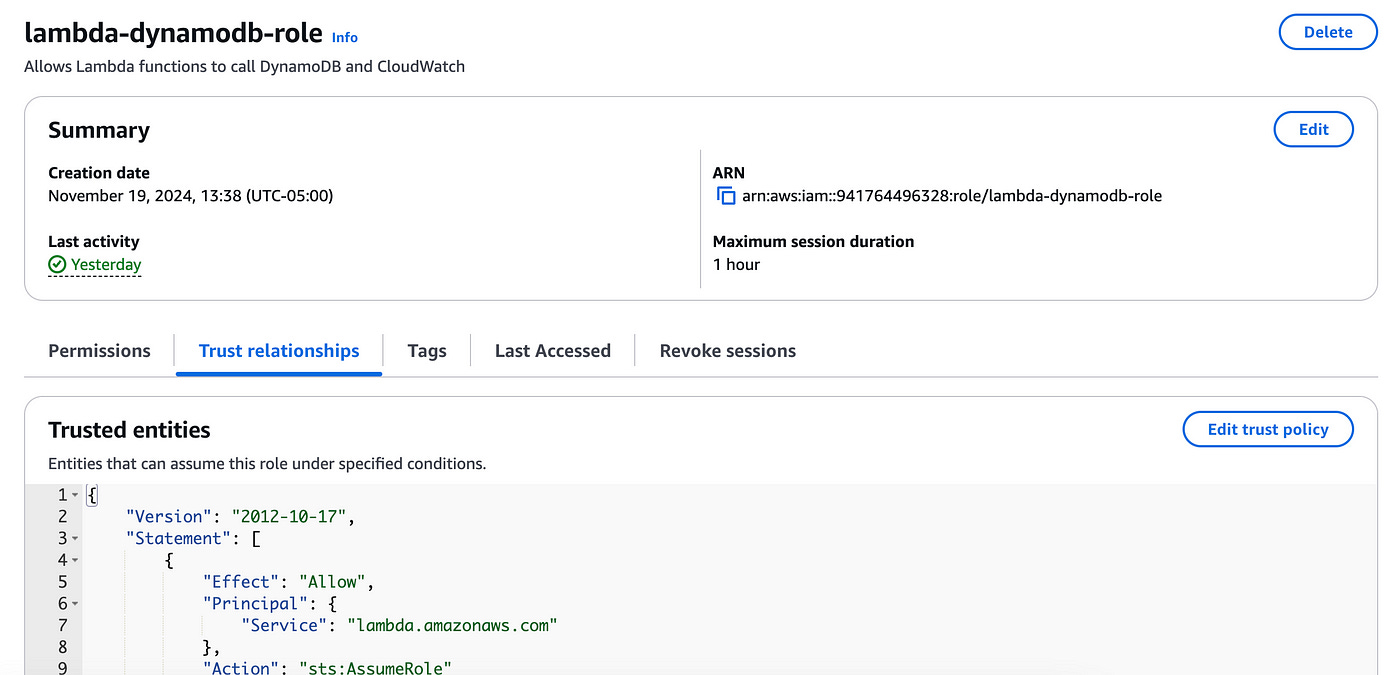
Overwrite the policy JSON with the following JSON:
{
   "Version": "2012-10-17",
   "Statement": [
      {
         "Effect": "Allow",
         "Principal": {
            "Service": [
               "lambda.amazonaws.com",
               "edgelambda.amazonaws.com"
            ]
         },
         "Action": "sts:AssumeRole"
      }
   ]
}
Click on Update policy to save it.
Creating A Lambda Function
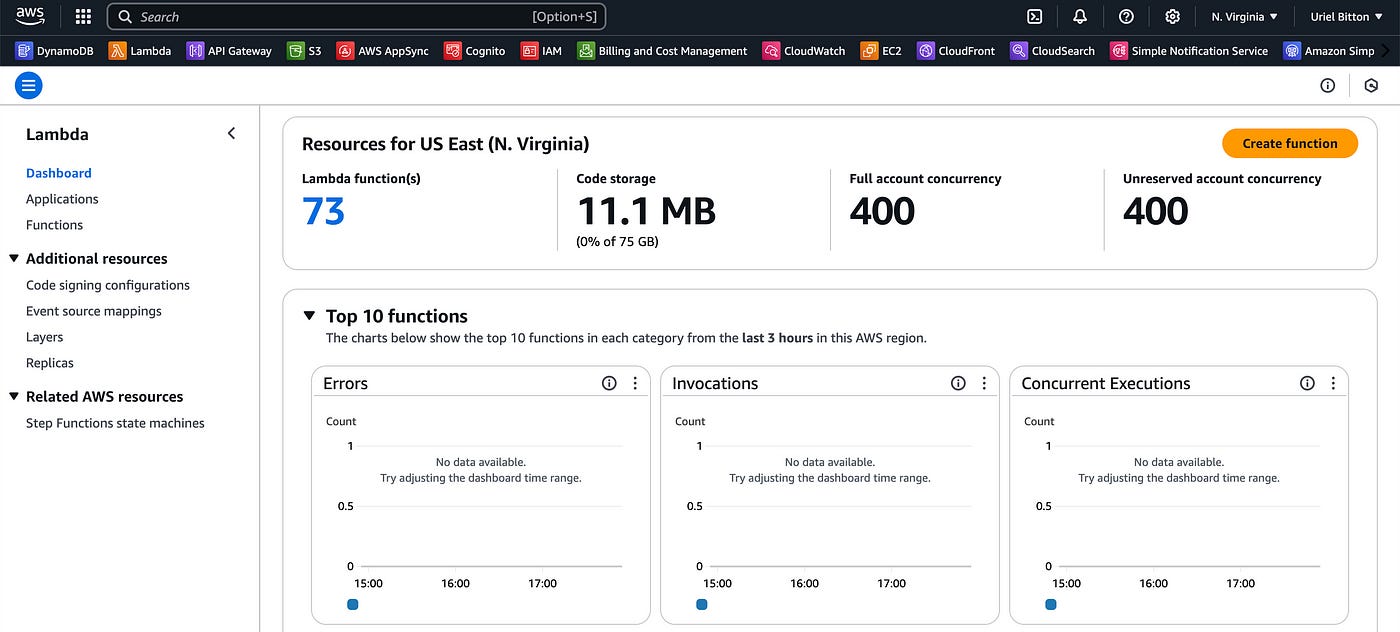
Head over to the Lambda service and create a new Lambda function.
Use the following configurations:
Author from scratch.
name the function “lambda-edge-function”.
Use the Node JS 20.x runtime.
Under permissions, add the role “lambda-dynamodb-role” we created earlier.
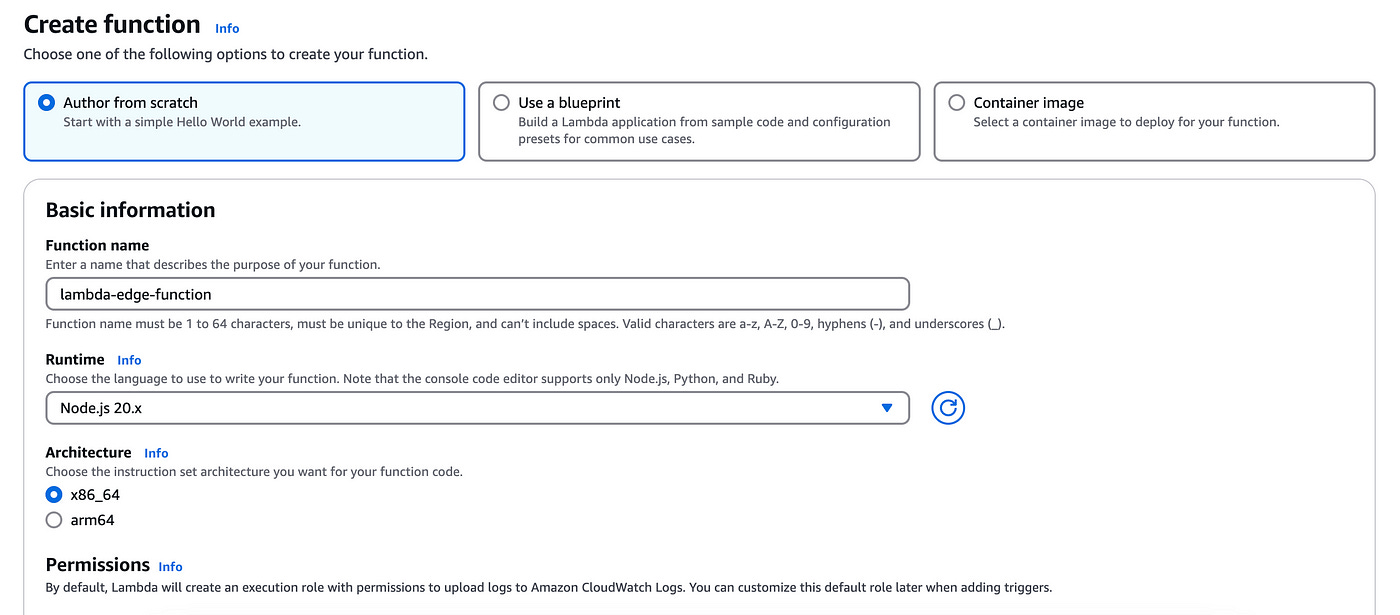
Create the function when you are done.
Let’s now write the code to demonstrate how to use the user’s region to write dynamic data to our DynamoDB table.
Scroll down to the code editor below and copy the following code inside:
const { DynamoDBClient, PutCommand } = require("@aws-sdk/client-dynamodb");

const dynamoDBClient = new DynamoDBClient({ region: "us-east-1" });

exports.handler = async (event) => {
  const request = event.Records[0].cf.request;
  const countryHeader = request.headers["cloudfront-viewer-country"];

  // Extract country code from headers
  const region = countryHeader ? countryHeader[0].value : "UNKNOWN";

  // Define price based on region
  let price;
  switch (region) {
    case "US":
      price = 19.99; // Price for United States
      break;
    case "IN":
      price = 1499.99; // Price for India
      break;
    case "JP":
      price = 2200; // Price for Japan
      break;
    default:
      price = 24.99; // Default price for other regions
  }

  // Write data to DynamoDB
  const ddbData = {
    region,
    productID: new Date().toISOString(),
    payload: "Sample data for the region",
    price, // Include price based on region
  };

  const params = {
    TableName: "products",
    Item: ddbData,
  };

  try {
    // Write data to DynamoDB
    await dynamoDBClient.send(new PutCommand(params));
    console.log(`Data written for region: ${region}`);
  } catch (error) {
    console.error("Error writing to DynamoDB:", error);
    return {
      status: "500",
      statusDescription: "Internal Server Error",
    };
  }

  // Continue request processing
  return request;
};
The code above will get the region code from cloudfront, and set the price of the item based on the origin country of the user’s request.
We then write that item to our DynamoDB table.
Save the code and hit the Deploy button on the left.
Configuring Lambda@Edge
All that’s left now is to deploy the function to Lambda@Edge.
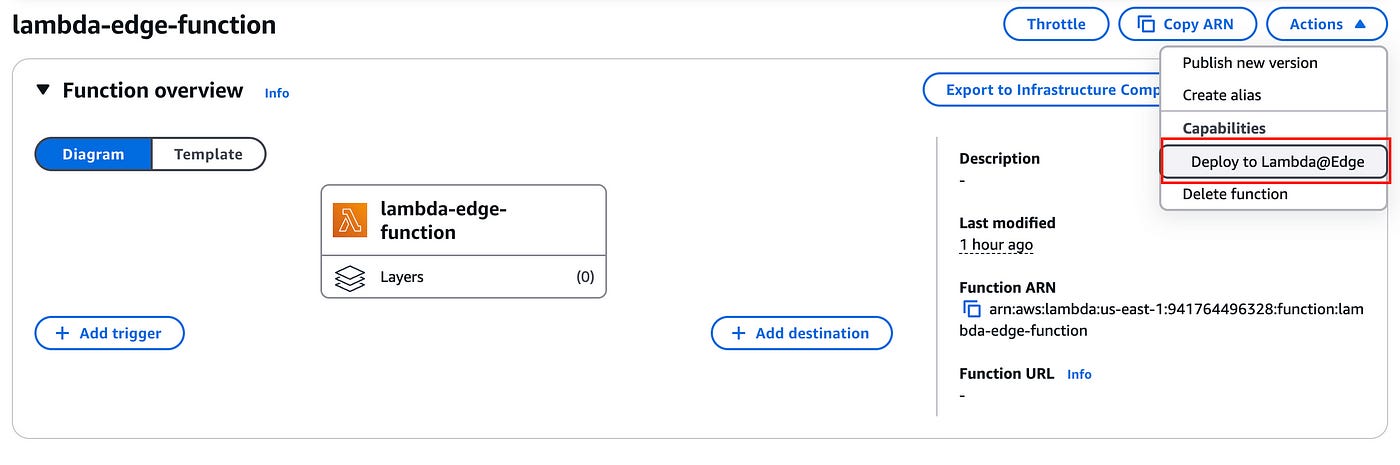
In the top right corner there’s an Actions button. Click that and select the option Deploy to Lambda@Edge.
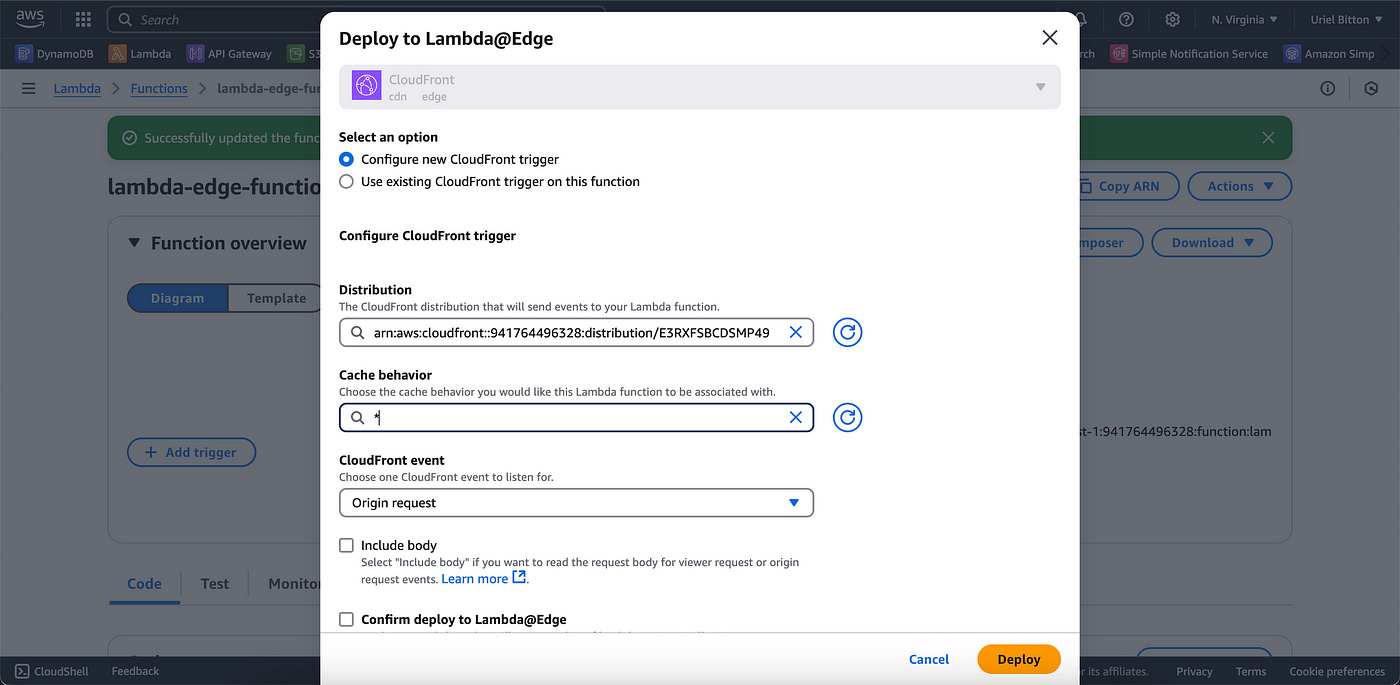
On the popup modal that appears, select the distribution we created earlier on CloudFront, and choose * as the cache behaviour.
Under CloudFront event, choose origin request — if it is already selected, select another option then reselect the origin request option (this solves a bug on the form).
Check the checkbox at the bottom that is labelled “Confirm deploy to Lambda@Edge” and then click the Deploy button at the bottom.
If you followed the above steps properly you should now see a success message at the top of your Lambda function:
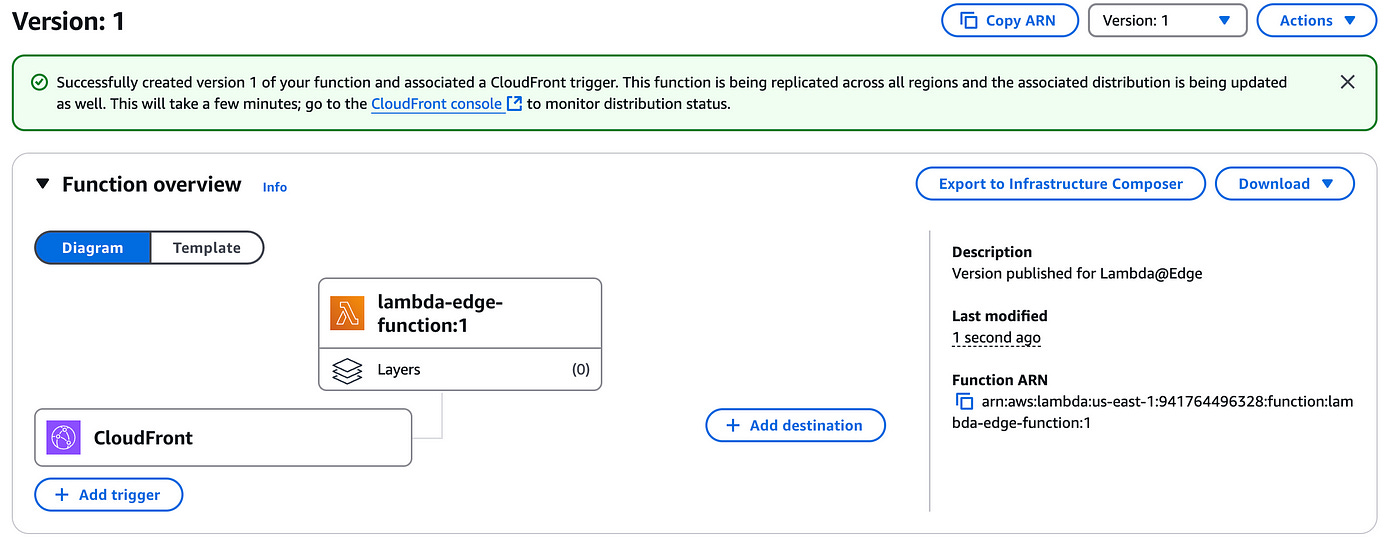
A CloudFront trigger was added to the function and a version 1 was created for this function.
Typically you should wait a few minutes while the Lambda function is replicated across all regions.
Let’s now test this code by running it in the Lambda editor directly.
Create a new test — click on the test button in the left sidebar.
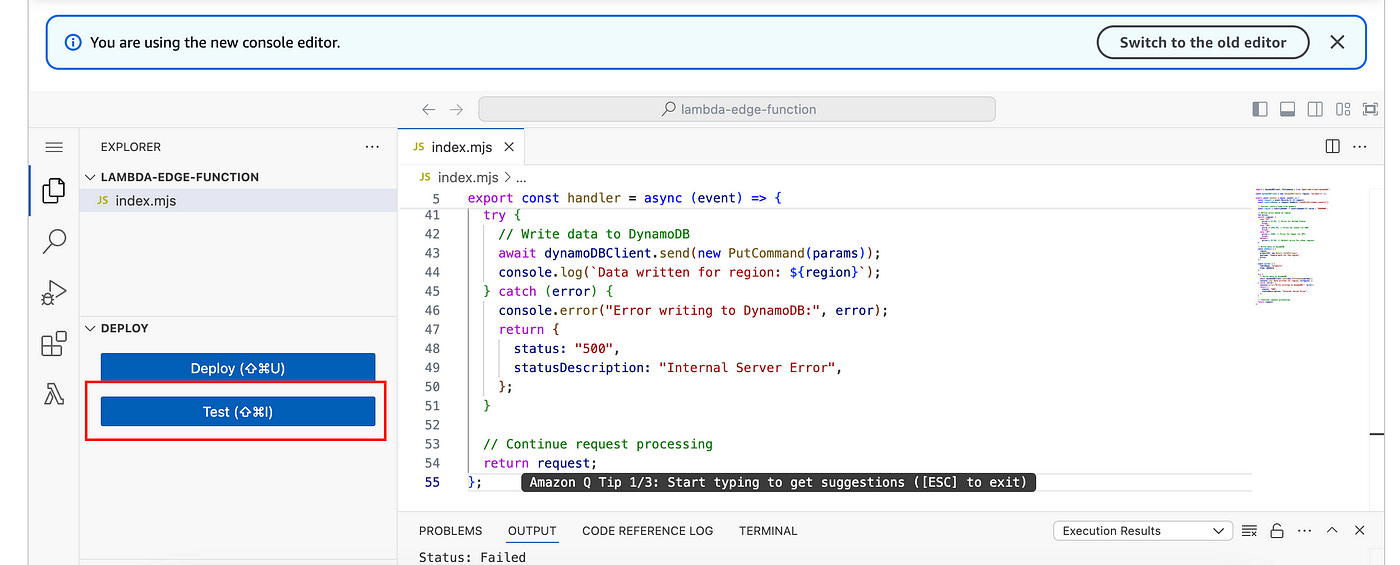
If you did everything right, you should get a new item added in your DynamoDB table with your origin country as the region attribute as well as the dynamic price attribute.
Conclusion
In this article, I go through using AWS Lambda@Edge and CloudFront to create region-specific pricing data dynamically stored in DynamoDB.
By using CloudFront headers to detect a user’s location, the Lambda@Edge function can write region-based pricing to a DynamoDB table, creating personalized, localized experiences like targeted promotions or country-specific product details.
👋 My name is Uriel Bitton and I’m committed to helping you master Serverless, Cloud Computing, and AWS.
🚀 If you want to learn how to build serverless, scalable, and resilient applications, you can also follow me on Linkedin for valuable daily posts.
Thanks for reading and see you in the next one!